

Discover supported data
Use a supported source and narrow the request by area, time, variable or analytical need. Check the source and review the acquisition step before continuing.
Explore Data SourcesStart with data you already have or work with supported geospatial sources inside GriidAI. Bring vector, raster, tabular, and multidimensional data into the workspace, review its context, and use it directly in an AI-guided spatial analysis workflow.
GriidAI supports two data paths. You can upload supported geospatial files from your own work, or use supported external and public sources when the required access path is available. Once data is in the workspace, inspect it, select it as an input, and use it in supported analysis, mapping, and later workflow steps.
Use the source directory and format matrix on this page to check access requirements, upload and export support, and handling notes. The right input also depends on your study area, time period, variables and analytical method.
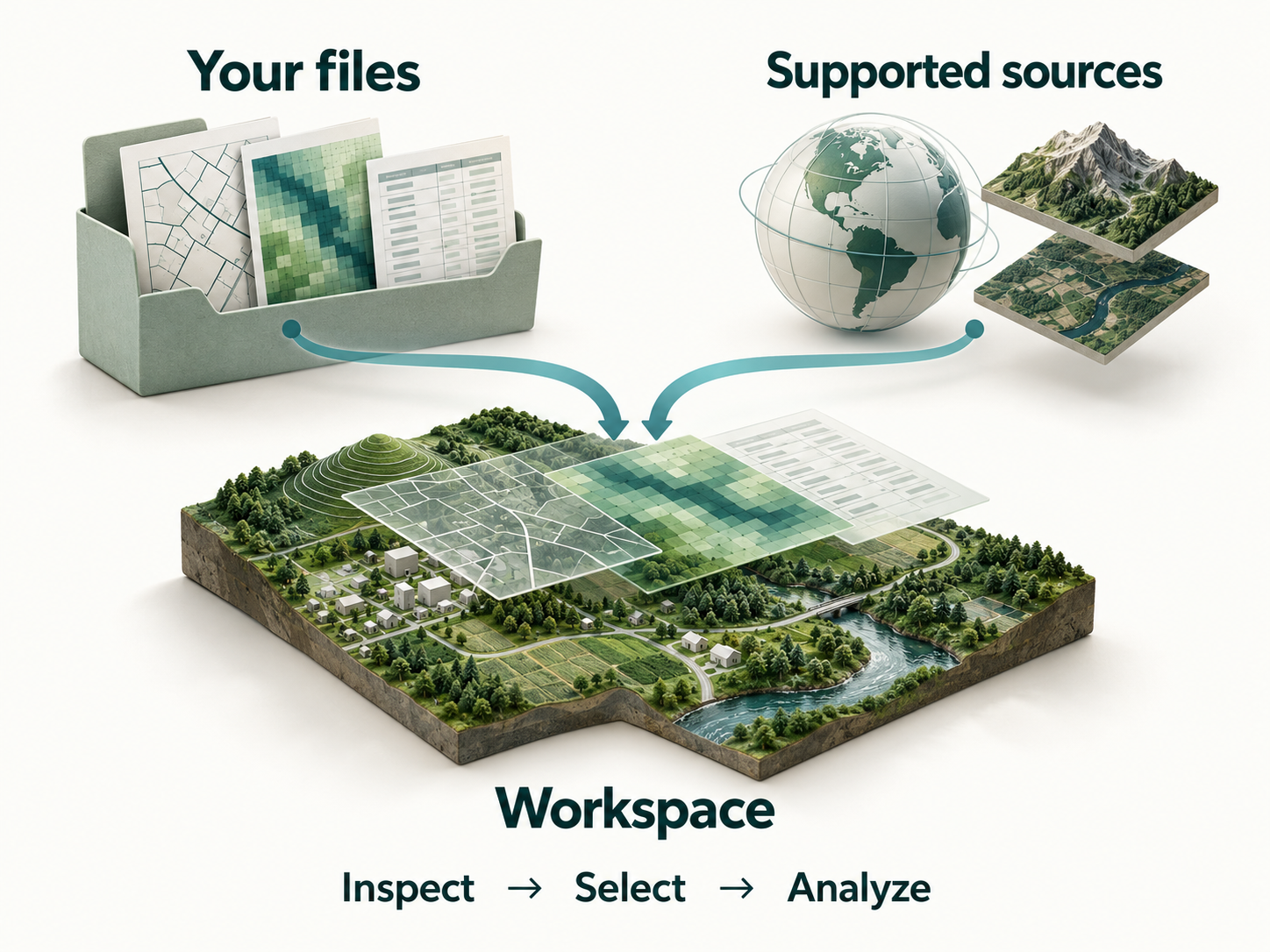
Choose the path that fits your project. Both lead to data you can inspect in the workspace and use in a reviewed analysis.
Use a supported source and narrow the request by area, time, variable or analytical need. Check the source and review the acquisition step before continuing.
Explore Data SourcesUpload supported files, inspect their spatial context, and use the intended dataset in a reviewed analysis.
Bring Your Own DataWhen the required source is supported, GriidAI can use the study area and analytical intent to locate or fetch relevant geospatial data, make it available in the workspace, and continue into the next analytical step.
Review the selected source, area and time coverage before continuing. Data from different sources may represent different measurements, resolutions or methods.
Upload supported geospatial data into the GriidAI workspace, organize it in the Data Catalog, inspect the map and metadata, and use the dataset as input to your next prompt or analysis step.
Choose or drop a supported dataset.
Confirm layer, map, attributes/metadata and study area.
Describe the spatial task and select the intended layer.
GriidAI proposes inputs, method, validation and expected output for supported executed steps.
User approves the step and processing runs.
Inspect map, attributes, statistics or other output context.
Export supported output or use it in the next analysis step.
When a supported step requires execution, GriidAI can present an implementation plan before the operation proceeds. The demonstrated plan structure exposes the selected inputs, method, validation approach and expected output so the user can confirm that the workflow matches the intended question.
The Data Catalog is the working inventory for a GriidAI session. Uploaded and acquired datasets can be organized, viewed on the map, inspected in tables or metadata panels, selected as prompt inputs, and carried through multi-step analysis. Intermediate analysis files can be separated from final project layers so the workspace remains understandable as the workflow grows.
Use attribute tables to examine vector records and metadata views to check the available structural and spatial information. Select the exact workspace layer for the next question so similarly named datasets do not create ambiguity.
After upload, find the dataset in the session Layers/Data Catalog. Toggle visibility, zoom to the layer where appropriate, and check whether it is vector, raster, tabular, AOI or an intermediate result.
For uploaded vector data, use the attribute table to inspect fields and records, make selections, and relate table records to map features.
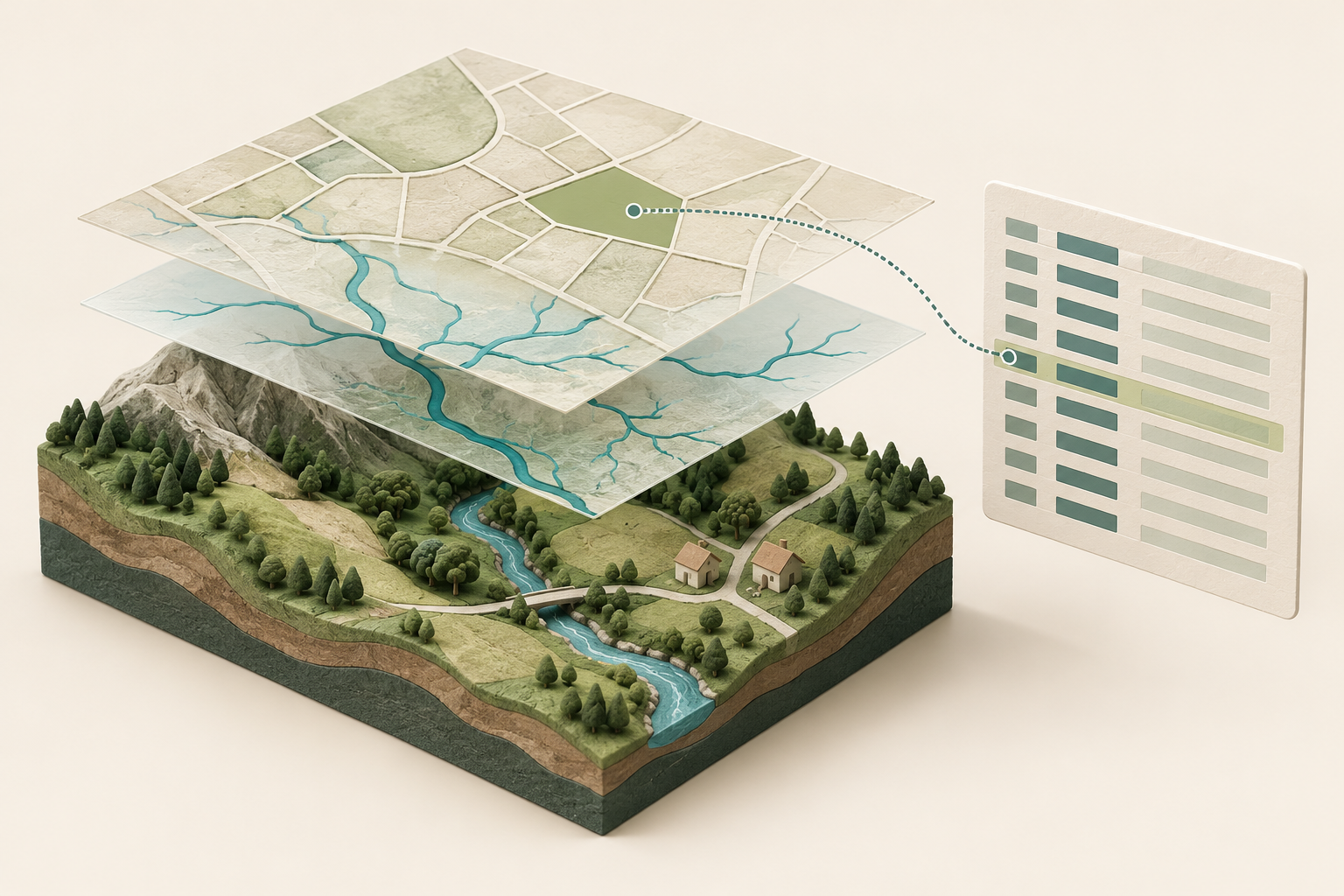
For raster or multidimensional inputs, safe analysis depends on more than opening the file. Resolution, dimensions, CRS, NoData behavior, valid values, time/depth dimensions and grid alignment can affect the result.
Use the layer helper to select an existing asset instead of repeatedly typing a long or ambiguous file name. This shortens prompts and reduces accidental reference to the wrong dataset when several layers have similar names.
Select the exact workspace layer before the plan is generated.
Workspace awareness improves input selection; it does not guarantee that the selected data is scientifically suitable for the task. The user still reviews the data and plan.
Use feature geometries, grids, tables and multidimensional inputs where the current workflow supports them. Data type explains the structure; the format matrix below explains how files can enter and leave GriidAI.
Represent discrete features with geometry and attributes.
Points, lines, polygons; buildings, roads and boundaries
Use supported vector formats for feature-based analysis and exchange. Inspect the geometry, attributes and spatial reference before selecting a method.
Work with cell-based grids and imagery.
Elevation, land cover and satellite imagery
Check GeoTIFF input and output support alongside its raster metadata. Resolution, bands, data type and NoData can affect the analysis and the exported result.
Use rows and fields where their meaning and relationship to the workflow are clear.
CSV and supported Parquet tables
A table is not automatically spatial. Coordinates, identifiers related to mapped features, or a supported attribute workflow determine how its rows can be used.
Use supported variables and slices across dimensions such as time or depth.
Verified Zarr path
Check the supported Zarr version, store structure, variables and dimensions. The selected slice and the resulting dataset must fit the downstream operation.
See which formats can be uploaded, inspected, used in supported analysis, and exported. These are separate capabilities: a format accepted as an input may not be available as an output, and analysis depends on the dataset’s structure and the selected operation.
Open a format’s notes for packaging, version and handling details. Check the current status before preparing your data.
Check upload, inspection, analysis and export separately. Supported formats vary by direction, and a file that opens successfully may still need preparation before a particular operation. Use the notes beside each format for packaging, version and structure requirements.
A file can be accepted by an upload path yet still have constraints that affect how it is previewed or analyzed.
| State | Meaning | Example of why it matters |
|---|---|---|
| Upload accepted | Ingest/parsing started or completed | File is structurally readable. |
| Preview / inspect | Map/table/metadata can be shown | A tabular file may be inspectable even if it is not spatial by itself. |
| Analysis-ready | Can be selected by relevant supported operations | Geometry, CRS, raster structure or fields may matter. |
| Exportable | Can be produced in a stated direction | May differ from the input list. |
| Format | Data family | Upload | Inspect | Analyze | Export | Notes |
|---|---|---|---|---|---|---|
| Shapefile.shp, .shx, .dbf, .prj | Vector | Supported | Supported | Supported | Supported | |
ShapefileShapefiles contain related components. Include the required companion files in the accepted upload packaging. Upload, inspection, analysis and Shapefile export are supported. | ||||||
| GeoJSON.geojson, .json | Vector | Supported | Supported | Supported | Supported | |
GeoJSONInspect feature geometries, attributes and spatial reference before analysis. GeoJSON is supported for upload and vector export. | ||||||
| FlatGeobuf.fgb | Vector | Supported | Supported | Supported | Supported | |
FlatGeobufFlatGeobuf is supported for vector upload and export. Inspect geometry, attributes and spatial reference before analysis. | ||||||
| KML.kml | Vector | Supported | Supported | Supported | Supported | |
KMLKML is supported for vector upload and export. Styles, network links, 3D constructs and related extensions may require separate handling. | ||||||
| File Geodatabase.gdb | Geodatabase | Supported | Supported | Supported | Not supported | |
File GeodatabaseFile Geodatabase input supports inspection and analysis. File Geodatabase is not an export format in the current export list. Check the contents, versions and packaging accepted by the import path. | ||||||
| GeoTIFF.tif, .tiff | Raster | Supported | Supported | Supported | SupportedRaster data. | |
GeoTIFFGeoTIFF is supported for raster upload and export. Inspect CRS, resolution, bands, data type and NoData before raster analysis. | ||||||
| CSV.csv | Tabular | Supported | Supported | Supported | Supported | |
CSVCSV supports upload, inspection, analysis and export. Tables can be exported as CSV or Parquet. Coordinates, a relationship to mapped features, or a supported attribute workflow determine spatial use. | ||||||
| Parquet.parquet | Tabular | Supported | Supported | Supported | SupportedTabular data. Vector export uses GeoParquet. | |
ParquetParquet supports tabular upload, inspection, analysis and export. Tables can be exported as CSV or Parquet. Vector geometry export uses the separate GeoParquet format. | ||||||
| GeoParquet.parquet | Vector | Not supported | Supported | Supported | Supported | |
GeoParquetGeoParquet is available for vector data export. Direct GeoParquet upload is not included in the current upload list; Parquet and GeoParquet have separate records. Inspection and analysis refer to the vector data in the workspace. | ||||||
| Zarr.zarr | Multidimensional | Supported | Supported | Supported | Not supported | |
ZarrZarr supports multidimensional upload, inspection and analysis. Check store layouts, versions, variables, dimensions and slice selection. Zarr is not included in the current export list. | ||||||
| Format | Data family | Upload | Inspect | Analyze | Export | Notes |
|---|---|---|---|---|---|---|
| ZIP.zip | Container | Supported | Supported | Supported | Not supported | |
ZIPZIP is an upload container. Inspection and analysis apply to the supported datasets inside the archive. ZIP is not included in the current export list. | ||||||
| Format | Data family | Upload | Inspect | Analyze | Export | Notes |
|---|---|---|---|---|---|---|
| PNG & JPEG.png, .jpg, .jpeg | Map output | Not supported | Not supported | Not supported | SupportedMap view only; not analytical dataset export. | |
PNG & JPEGPNG and JPEG export the map view for communication. They do not export reusable analytical datasets and are not listed as dataset upload formats. | ||||||
| PDF.pdf | Map output | Not supported | Not supported | Not supported | SupportedMap view only; not analytical dataset export. | |
PDF exports the map view for communication. It does not export reusable analytical datasets and is not listed as a dataset upload format. | ||||||
No current public compatibility record found. Check the format name or contact us about your requirements.
Contact UsNo current public compatibility record found. Check the format name or contact us about your requirements.
Browse sources verified for use with GriidAI. See the available data types, coverage, access requirements, and related datasets or workflows. Availability can differ between products from the same provider.
Some sources are public; others require a provider account, credentials, subscription, or license. Data remains subject to the provider’s terms and availability. Check the last-verified date and the dataset details before choosing a source.
Current source details are not available here yet. You can explore supported upload options below.
No sources match these filters. Clear a filter or bring your own data into GriidAI.
We do not currently publish a verified record for this source. Check the supported formats to bring your own data, or contact us about your requirements.
Public access does not mean public-domain licensing. Free access does not mean unrestricted redistribution.
Define an area of interest, request supported elevation data, review the acquisition plan, and inspect the raster in the catalog. Use the retrieved data in a subsequent terrain step, then review the slope or aspect result.
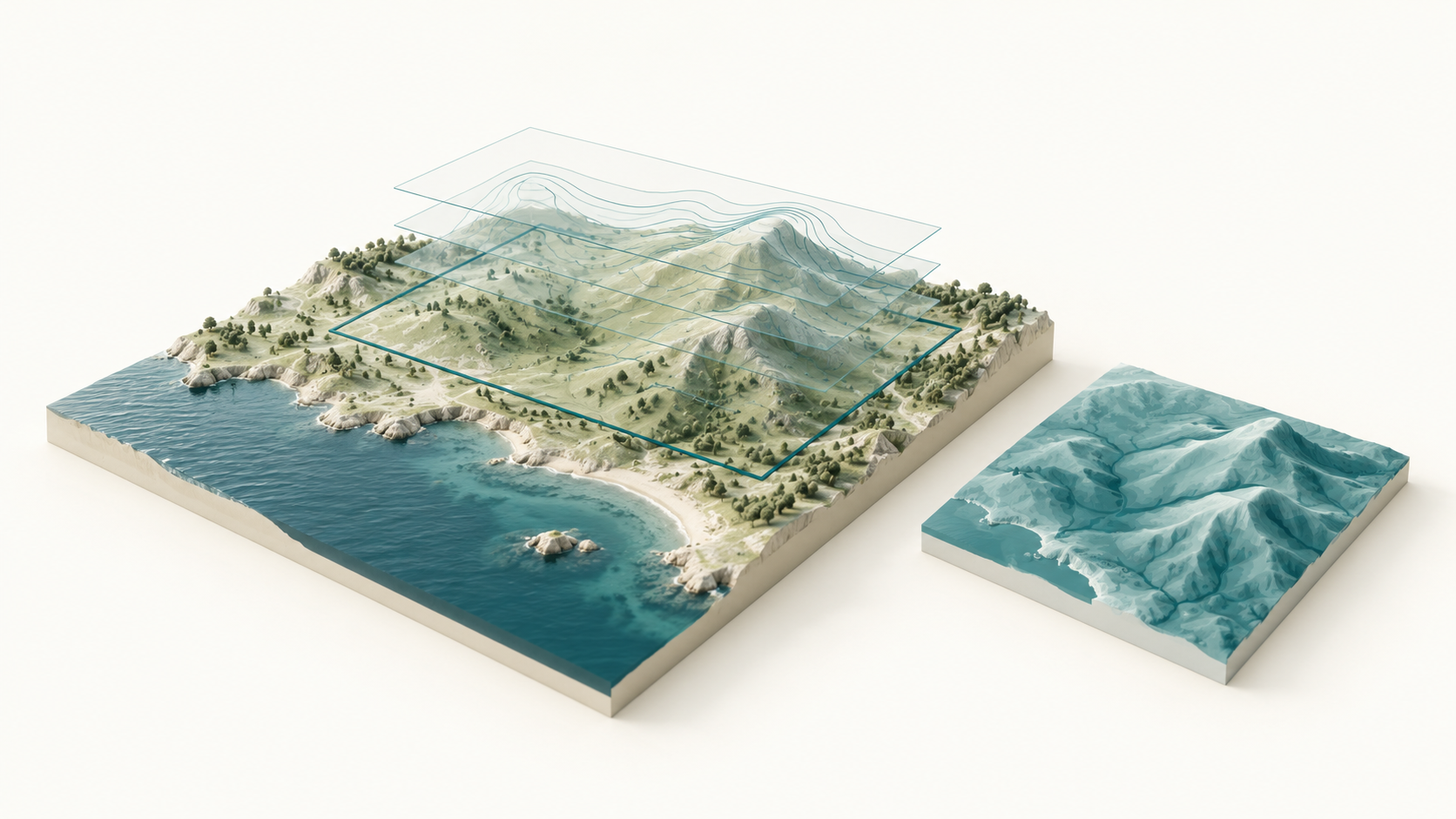
Check where the data came from, what it measures, where and when it applies, and how it is encoded. GriidAI can expose workspace metadata for inspection, while source records provide access, coverage, licensing and verification context.
Use that context to assess whether the dataset fits your question. A mapped result or an accepted upload is not a guarantee of data quality or analytical suitability.
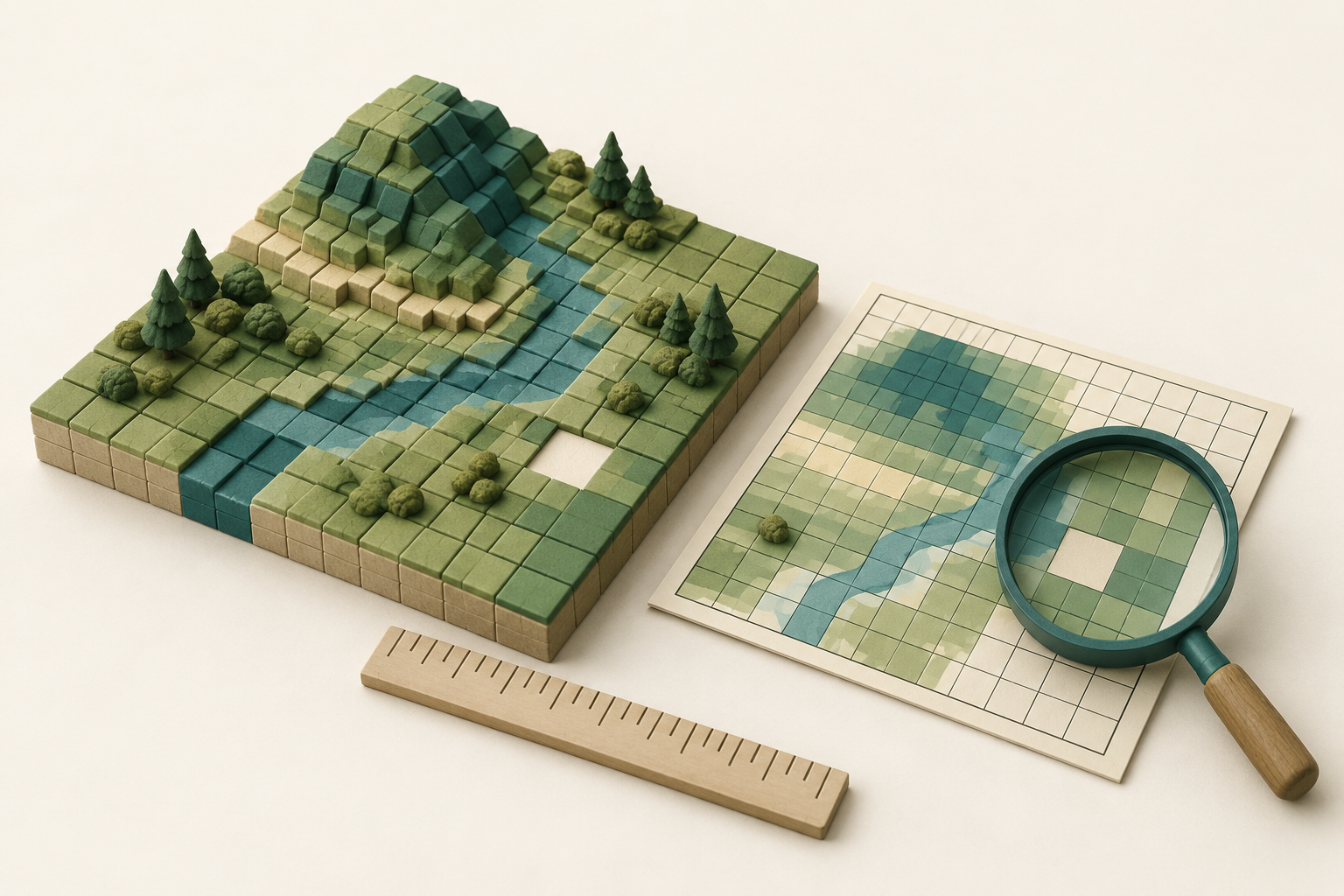
Observation date and product update frequency describe the data. Last verified describes a support/access check. CRS, structure and values shown in product metadata are different from licensing and provenance information in source records.
Confirm the intended dataset and study area, inspect its geometry or raster structure, and check the spatial reference, units and missing-value behavior. Define any preparation needed before using the data in a reviewed method.
Upload building footprints, select the intended feature, and review a 50-meter buffer operation before execution. Inspect the buffer and a follow-on intersection result to identify nearby or overlapping buildings.
Inspect the uploaded building layer.
Review the input and 50-meter buffer plan.
Check the buffer and intersection result.
Combine building footprints and a digital surface model in a reviewed rooftop-screening workflow. Check spatial overlap, CRS, resolution, dimensions and NoData before processing, then inspect building-level summaries and sanity checks. Use the results to identify buildings that may warrant closer engineering review.
Organize source data, intermediate results and final layers so you can follow the work. Review temporary outputs and retain the ones needed for the next step. Use layer visibility and order to manage the map without confusing that with deleting data.
Use layer type filters to find vector, raster, tabular, AOI and temp/intermediate items.
Where session data sharing is available, reuse the intended datasets in another session and continue related analysis with the same project inputs.
Explore the Platform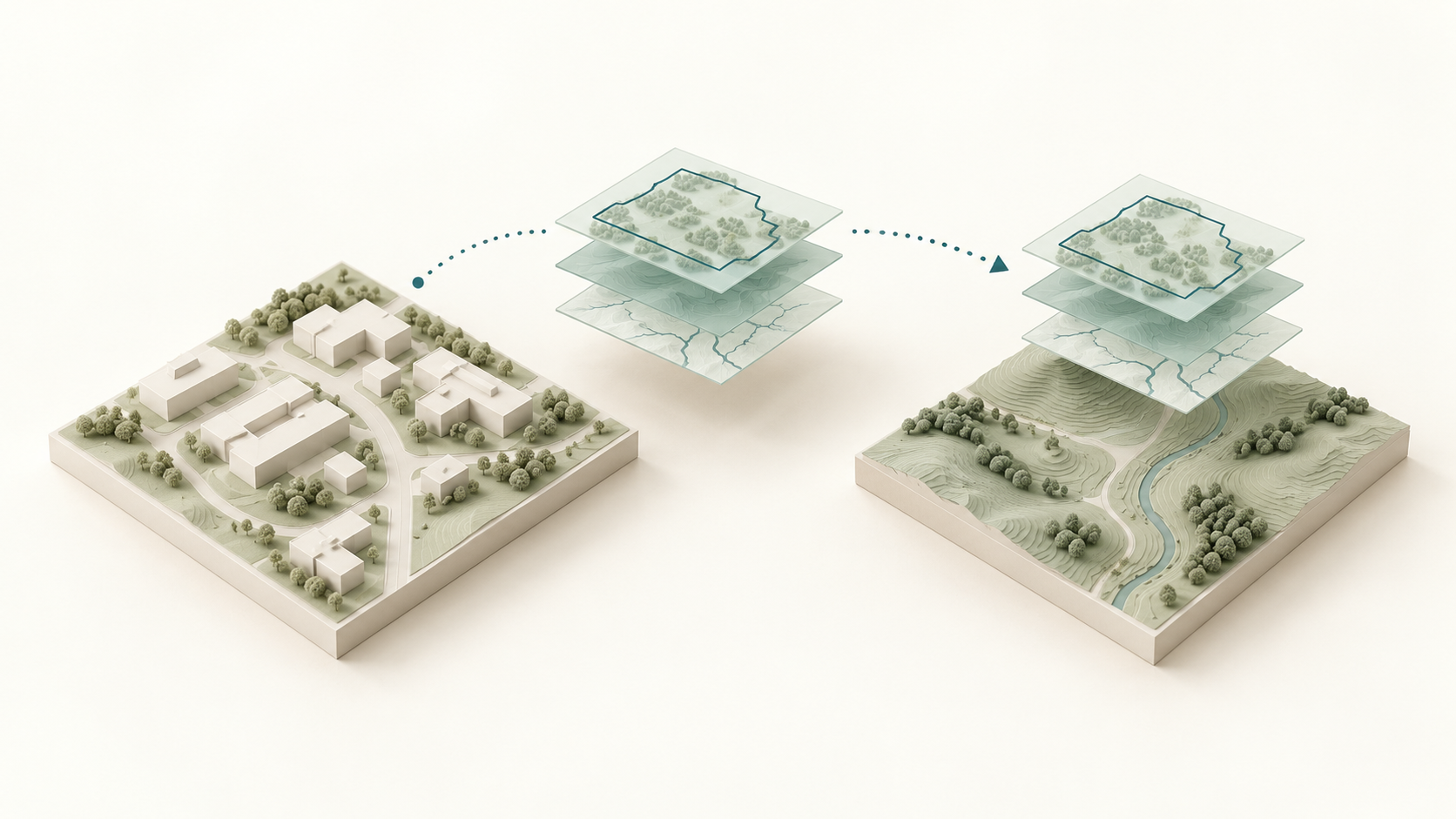
Inspect the result in the workspace, then export supported analytical or map outputs when the next step requires them. Check the format matrix for the available output directions and any restrictions.
PNG, JPEG and PDF communicate a map view. Use an analytical export when the next step requires reusable GIS data.
Check Export Formats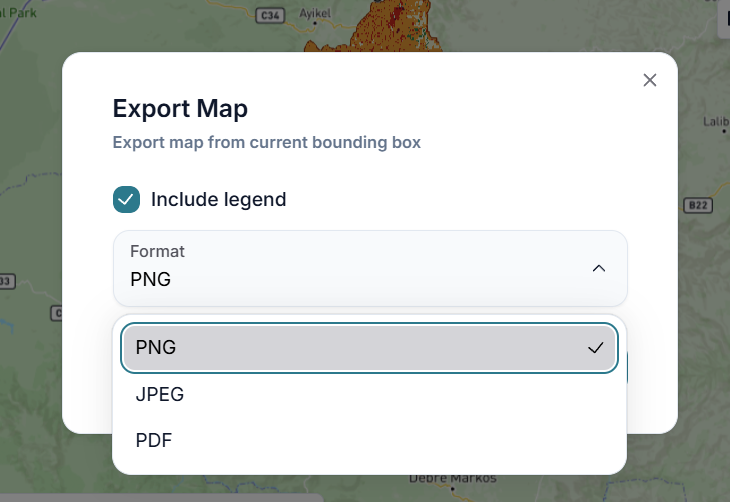
Yes, use supported file-based inputs. Check the current format record, accepted structure and applicable limits, then inspect the uploaded data before analysis.
For a supported source and access path, GriidAI can use the requested area and analytical context to retrieve relevant data. Check the provider’s available products and review the acquisition step.
No. Access may be public, account-based, credentialed or licensed, and may differ by dataset. The source record explains the relevant requirement.
An absent record does not establish current GriidAI access. You can check compatible upload formats for data you already have, or contact us about the source.
No. Upload, inspection, analysis and export are listed separately. Use the direction-specific matrix for the format you need.
Parquet supports tabular upload and table export. GeoParquet is available for vector export and is not listed as a direct upload format. Use the separate records for each direction.
Check the current record for packaging and accepted contents. ZIP is a container, and a geodatabase can contain structures with different handling requirements.
Check the supported version, store structure, variable and dimension handling in the current Zarr record. Do not assume every store or slice is compatible.
Do not assume automatic correction. Inspect the dataset, identify the preparation required, and review supported processing steps before using the revised result.
Applicable limits can depend on the current product plan, file structure and operation. Check the approved product limits before transferring a large dataset.
File upload does not establish a live database connection. Check separately confirmed integration options; do not assume PostGIS, Oracle Spatial or MySQL connectivity from file support.
Yes. Export vector data as Shapefile, GeoJSON, CSV, GeoParquet, FlatGeobuf or KML, raster data as GeoTIFF, and tables as CSV or Parquet. PNG, JPEG and PDF export the map view rather than reusable analytical data.
Where supported, session data sharing lets you reuse the intended inputs. Check the current behavior; it does not imply real-time co-editing.
No. It records verification of the access or compatibility claim. Dataset observation dates, temporal coverage and update frequency are separate facts.
Use the source directory on this page to see the current verified public inventory. Each source identifies available data categories or products, access requirements, coverage and the date its status was checked.
Check the current matrix for upload, inspection, analysis and export support. Vector, raster, tabular, geodatabase and multidimensional paths have different requirements; ZIP packaging and map outputs are shown separately.
Yes. Upload a supported Shapefile with its required companion files, inspect the layer and attributes, and select it for a supported vector operation. Review the proposed method before execution.
Yes. GeoTIFF supports upload, inspection, analysis and raster export. Inspect CRS, resolution, dimensions, bands and NoData, then select a supported raster or terrain method.
Select the exact layer in the workspace and describe the task. For supported executed steps, review the selected inputs, method, validation and expected output, approve execution, and inspect the result before continuing.
No. Public access and licensing are different. Review the provider’s terms and the dataset-specific notes before using or redistributing data.
Some supported paths require a provider account, API key, token or subscription. The access badge explains that requirement. This website does not collect provider credentials.
Each public source has a Last verified date for its supported access path. Dataset collection dates and update frequency are separate. Check temporary-availability notes and dataset-specific details before relying on a source.
A provider is the source organization or service. A dataset is a particular product, collection or layer. Different datasets from one provider may have different coverage, dates and access requirements.
Third-party data remains subject to its source’s ownership, licensing and availability. GriidAI provides a supported access path and analytical context; consult the official source and dataset notes for terms.
This page explains supported data sources and how to use your own data in GriidAI. It does not offer data purchasing or selling.
Check source, license, study area, time period, CRS, units and the meaning of fields or variables. For raster and multidimensional inputs, also check resolution, alignment, bands, dimensions and NoData.
Find a supported source or bring your own dataset. Check its context, review the method, and move into spatial analysis with GriidAI.